

Accessing service accounts
- Click your project logo in the top-left corner
- Select Project Settings
- Navigate to the Service accounts tab
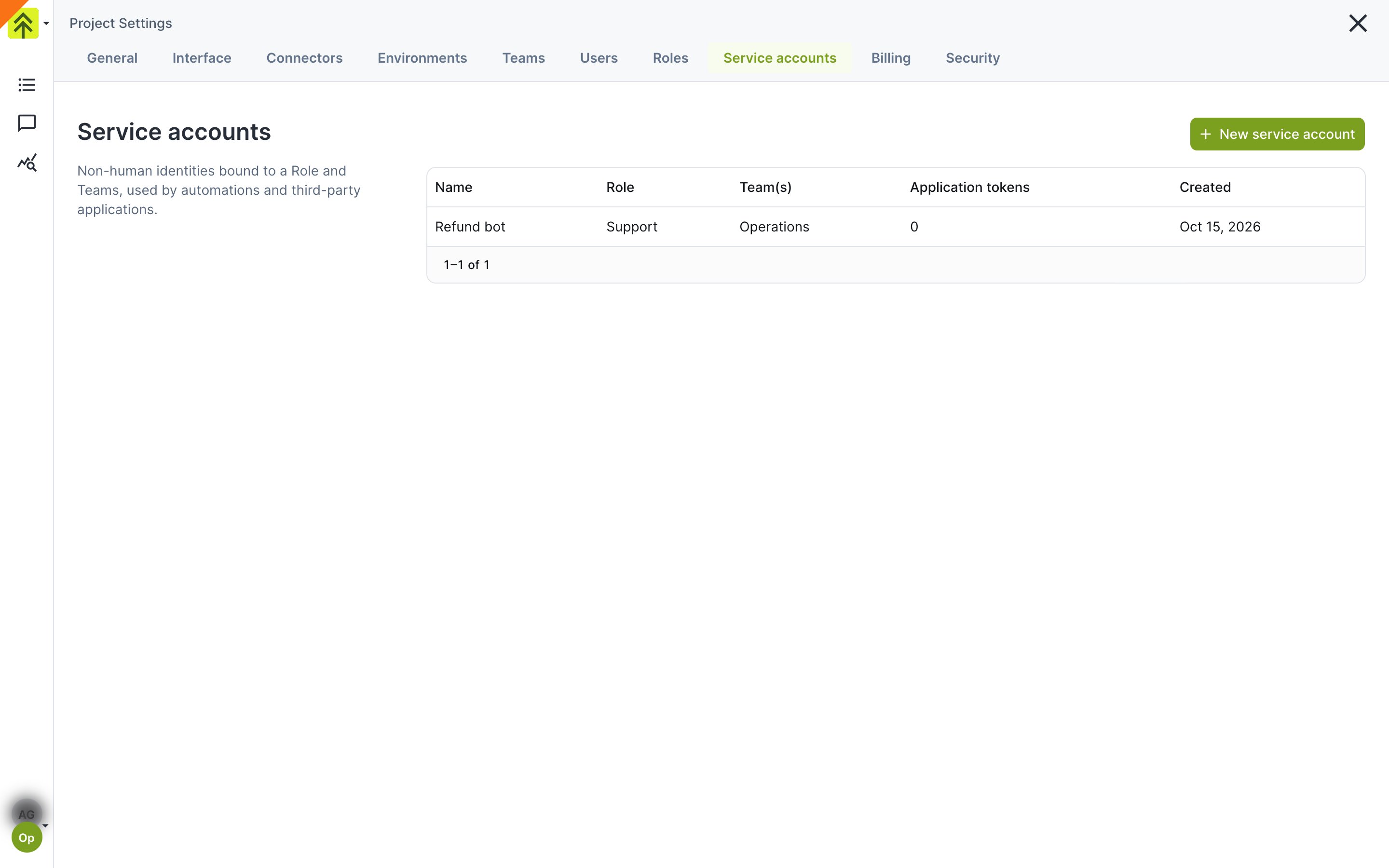
The Service accounts tab in Project Settings
/settings/api-keys links open it.
How a service account differs from a user
- It never signs in. Forest refuses a service account on every sign-in method, password, SSO or Google, so it cannot open the Forest UI. It reaches your data only through an application token.
- Its permission level is always User. It cannot be made an Admin, so it cannot change your project settings. What it can do with your data depends on its Role.
- It is not counted with your users. Service accounts do not appear in your project’s user count.
- Its actions are attributed to it. What it does through the Gateway is recorded in your activity logs as the service account’s activity.
Creating a service account
- Click New service account
- Fill in:
- Name - What the account is for, for example
Refund botorSupport assistant - Team(s) - One or more teams. A token only works on a team the account belongs to
- Role - The Role that decides which collections, fields and actions the account can use
- Name - What the account is for, for example
- Click Create service account
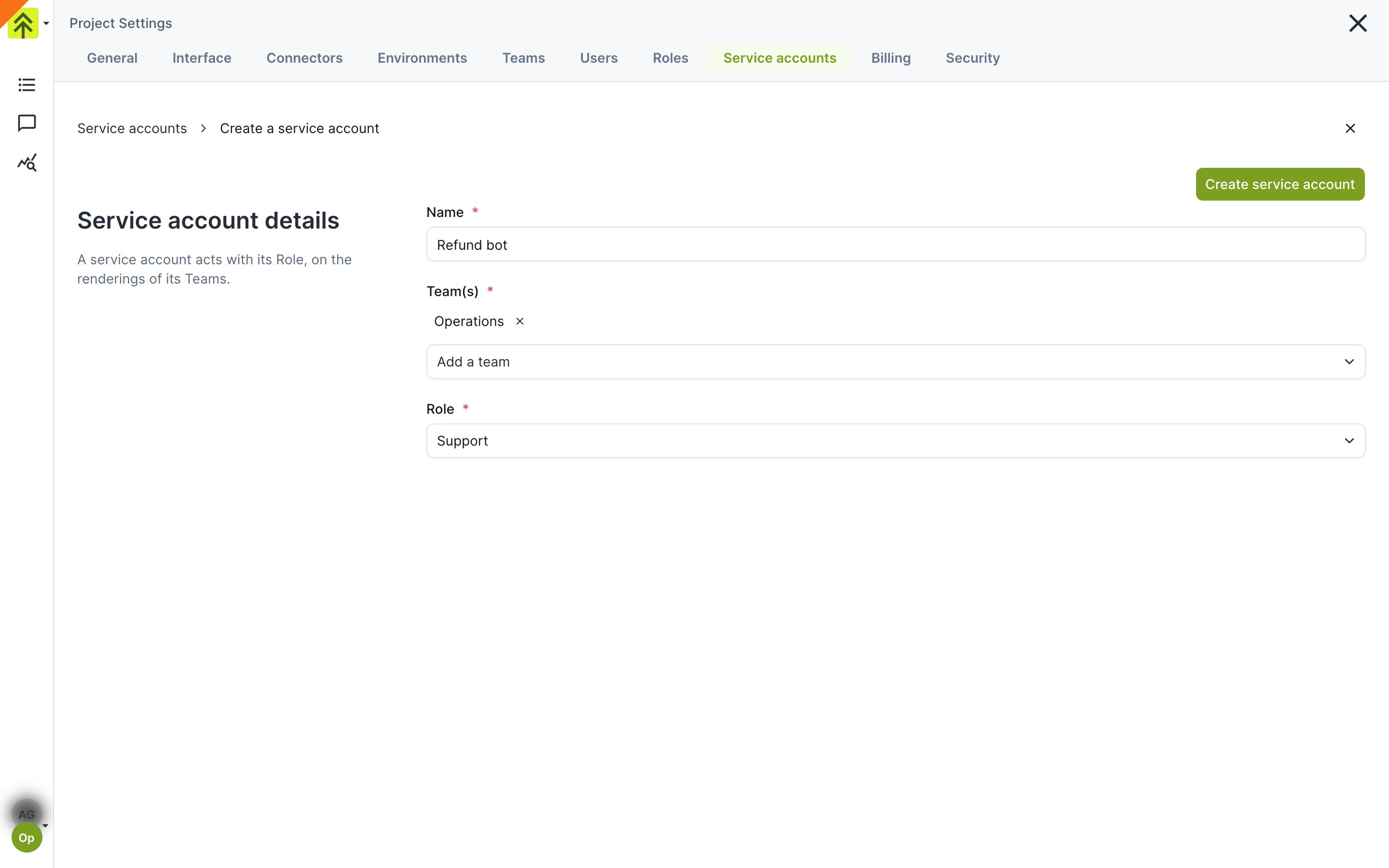
Create a service account with a name, one or more teams and a Role
Your back-end applies a Role change at its next permissions refresh, as it does for any user. A Node.js agent refreshes right away through the Forest event stream when
instantCacheRefresh is on, the default, and after permissionsCacheDurationInSeconds when it is off, see Permissions and caching. The permission hints the Gateway serves at GET /api/agent/v1/permissions can lag for up to 15 minutes.Generating an application token
An application token lets an application authenticate as the service account. Each token is tied to one environment and one team, so you can give each application its own token, or hold two while you rotate one.These are not the application tokens of your account settings. Those are personal, act as you, and serve the Forest CLI and the Public API.
- On the service account’s page, click Generate application token
- Fill in:
- Name - Where the token is used, for example
n8n production - Environment - The token only works on this environment
- Team - The team whose layout the token uses on this environment. The field only appears when several of the account’s teams can reach that environment
- Name - Where the token is used, for example
- Click Generate application token
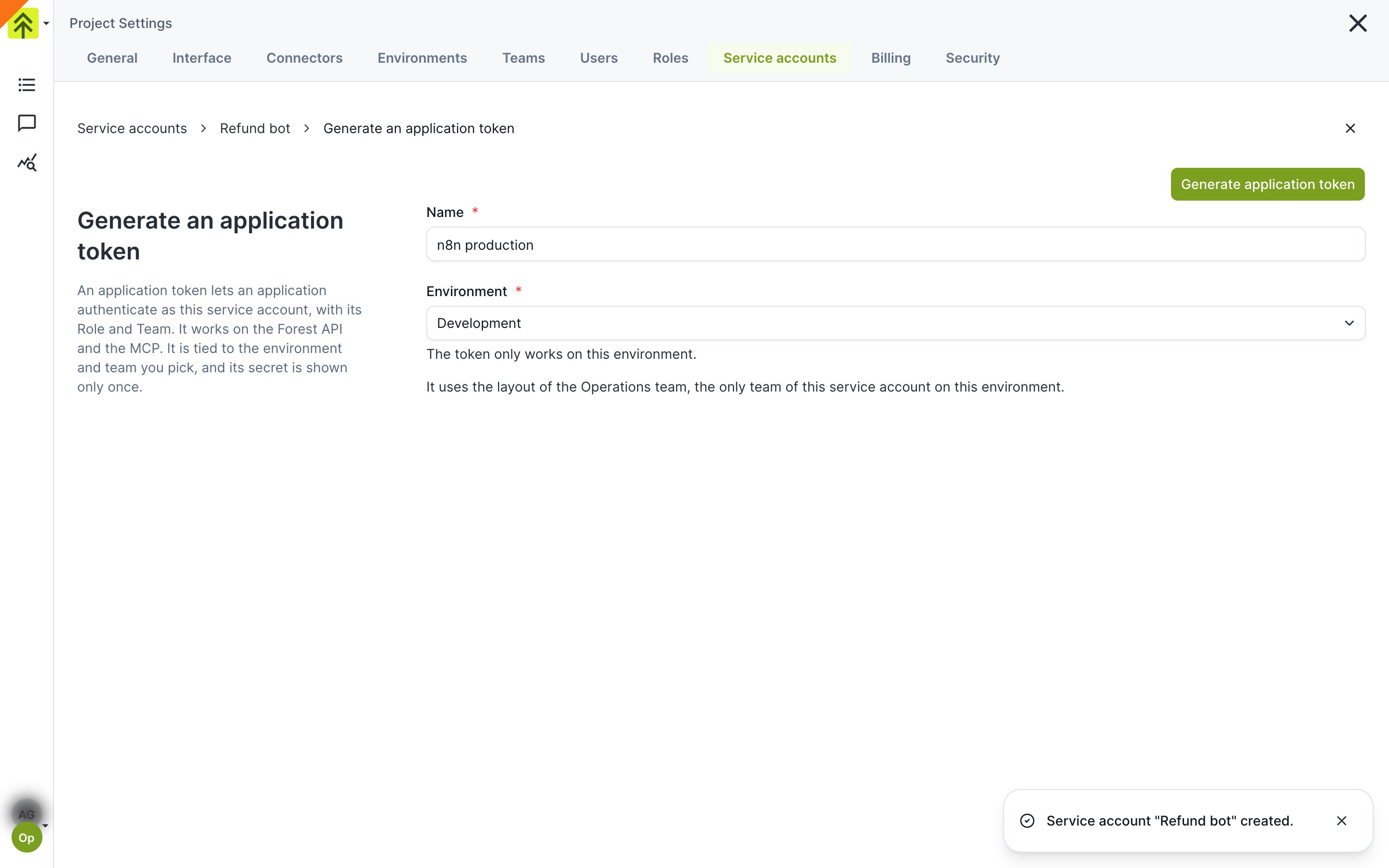
Generate an application token for one environment
fgw_. It is copied to your clipboard when your browser allows it, and a Copy button sits next to it.
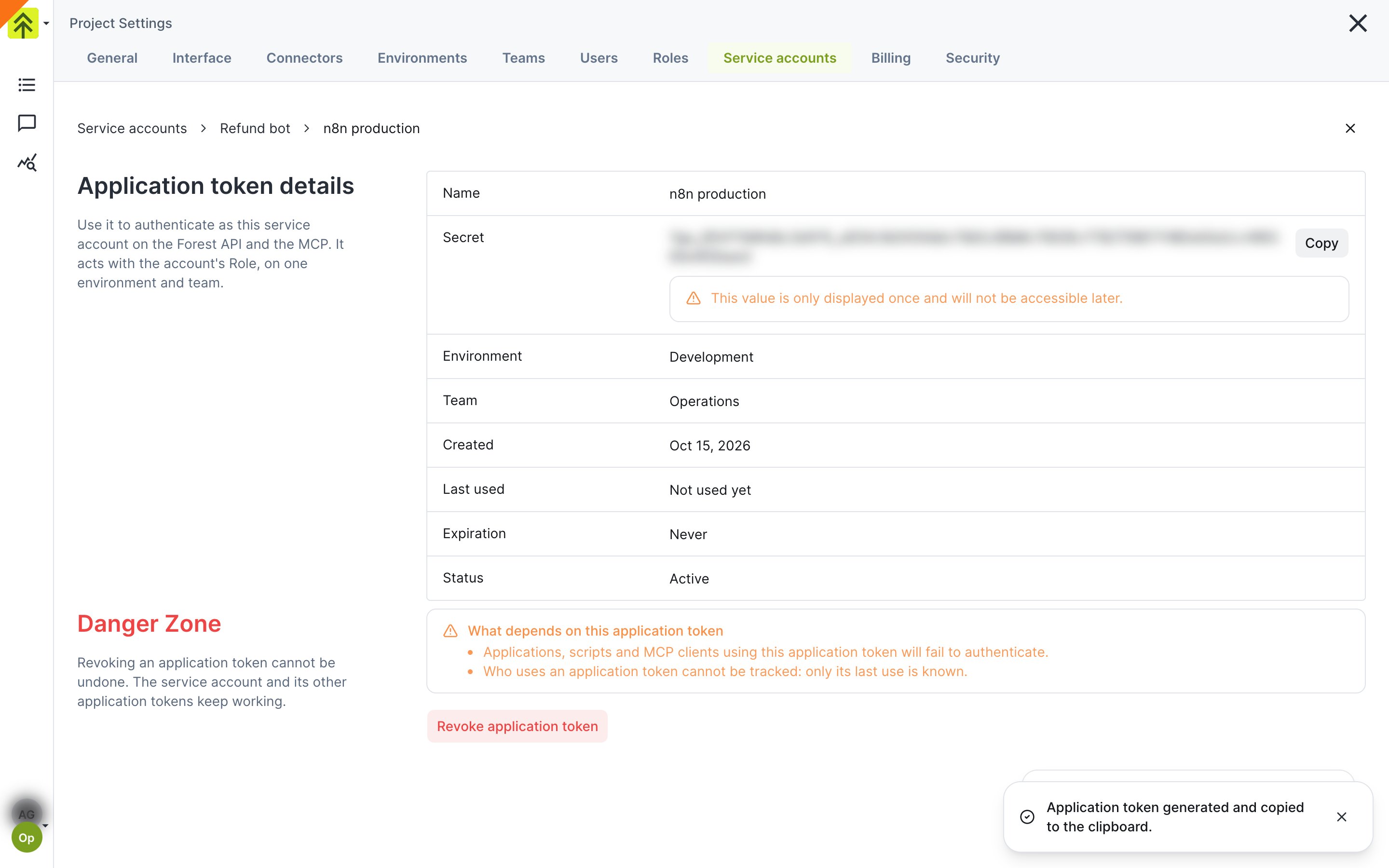
The secret is shown once, on the token page
- The account has no Role. Assign one on its page first.
- No environment is available. The account’s Role must enable at least one environment its Teams can reach. Enable an environment on the Role, or add a Team.
Using an application token
Application tokens authenticate on the Forest Gateway, against the environment and team they were generated for:-
API service - Send the token in the
X-Forest-Gateway-Keyheader:The header needs@forestadmin/agent1.110.1 or later embedded, or@forestadmin/gateway1.0.2 or later standalone. Earlier versions read the token fromX-Forest-Bff-Key, which stays accepted as an alias. A token reaches the read and action routes,list,count, relations, actionformandexecute,contextandpermissions.ai/queryrequires an OAuth sign-in and answers403 oauth_required. -
MCP service - Send the token as a bearer,
Authorization: Bearer fgw_.... The account gets the MCP tools, writes included, within what its Role allows.
400 ambiguous_credentials. See Authentication.
The Gateway’s
allowedOAuthClients restricts OAuth client applications. It does not apply to application tokens, which authenticate a service account directly. See Restricting which OAuth clients can connect.When a token stops working
Each time the Gateway checks a token, the token’s service account must:- have a Role,
- still be a member of the token’s team,
- have a Role that enables the token’s environment, unless roles are disabled on your project.
403 forest_identity_not_allowed, and a revoked, unknown or malformed token gets 401 invalid_api_key. The MCP service answers with the matching OAuth errors, insufficient_scope and invalid_token.
These checks are cached. Removing the account from the team, or disabling the environment on its Role, takes effect within a few minutes, like a revocation. The Gateway also remembers a refusal for about ten seconds. After you fix the cause, for example by enabling the environment on the account’s Role, retry after that delay.
Revoking an application token
- Open the service account, then the token under Application tokens
- In the Danger Zone, click Revoke application token
- Type the token’s name to confirm, then click Revoke application token
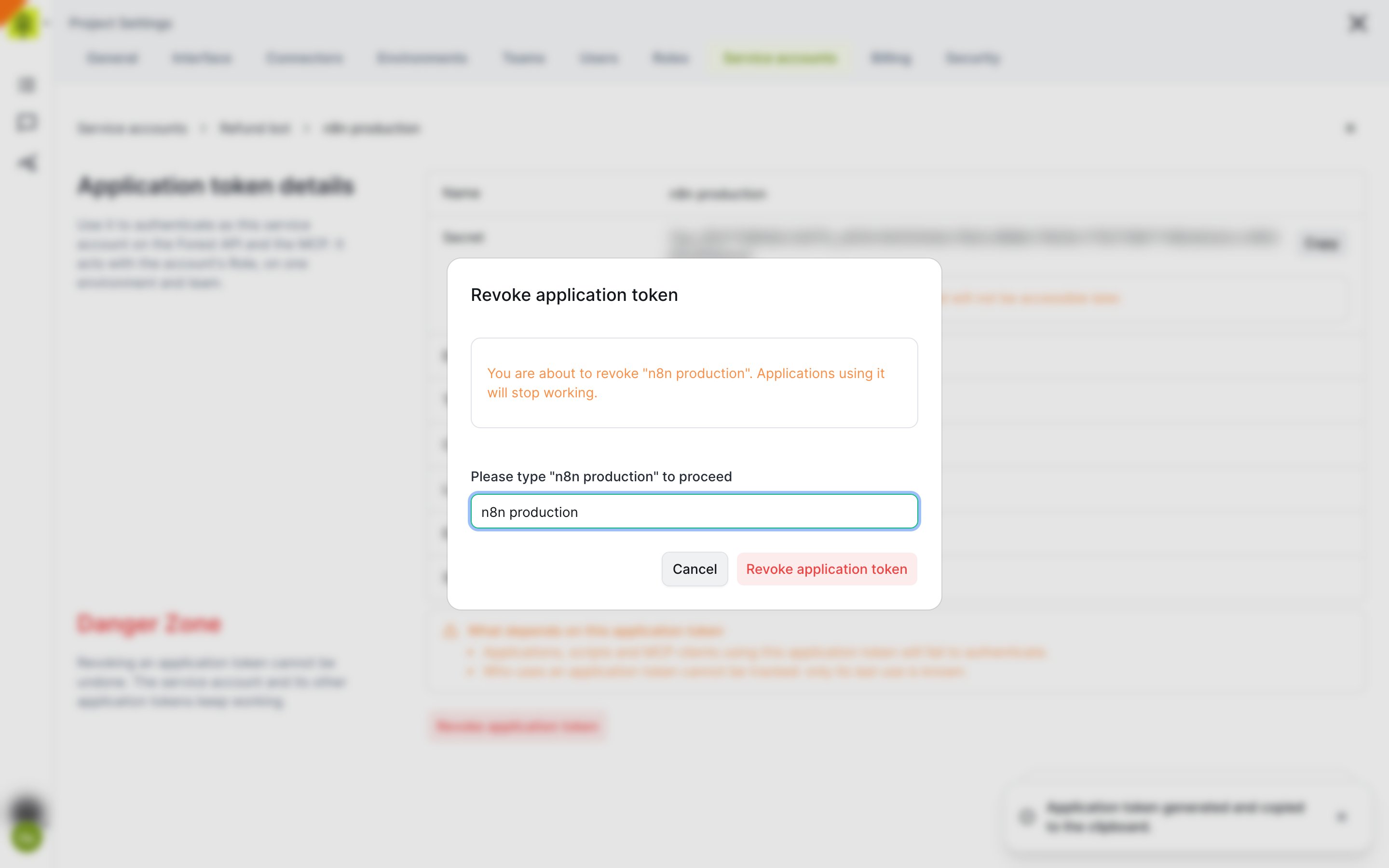
Type the token name to confirm the revocation
- Removing the account from a team revokes its tokens on that team.
- Deleting a team revokes every service account token on that team.
- Deleting the service account revokes all its tokens.
Deleting a service account
- Open the service account’s details page
- In the Danger Zone, click Delete service account
- Type the account’s name to confirm, then click Delete service account
What’s next
Forest Gateway
Mount the Gateway that application tokens authenticate against.
Roles & permissions
Decide what a service account can see and do.