

- A Segment, for example the
Waiting for Validationsegment of aDocumentscollection. Every record in that segment becomes a task for operators to process. - A Workflow, as an escalation mechanism for a user to pick up a process where a previous user left off.
Creating an inbox
To create an inbox, navigate to the Collaboration tab and enable Layout Editor mode. In the left navbar, find the Inboxes section and click Add New.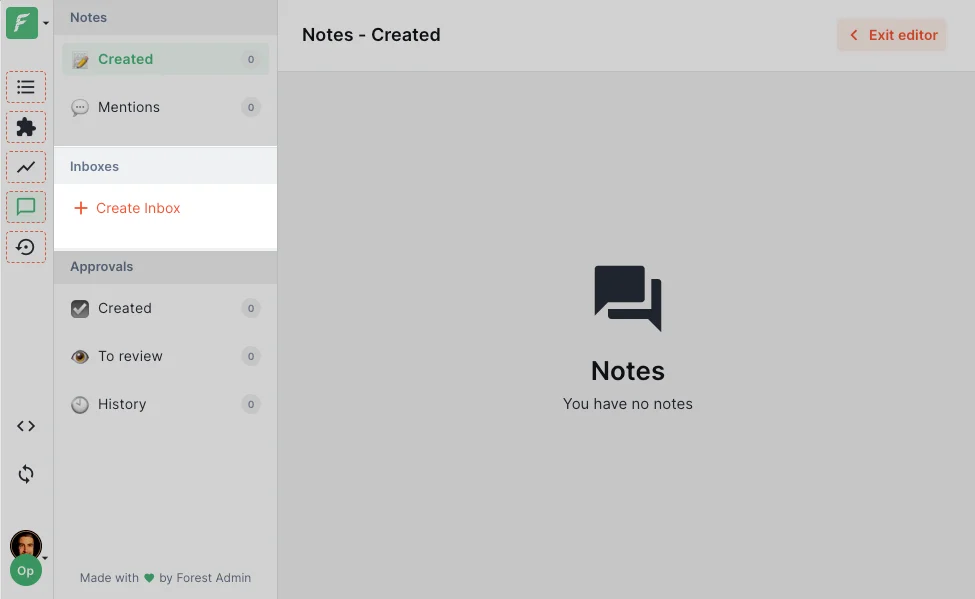
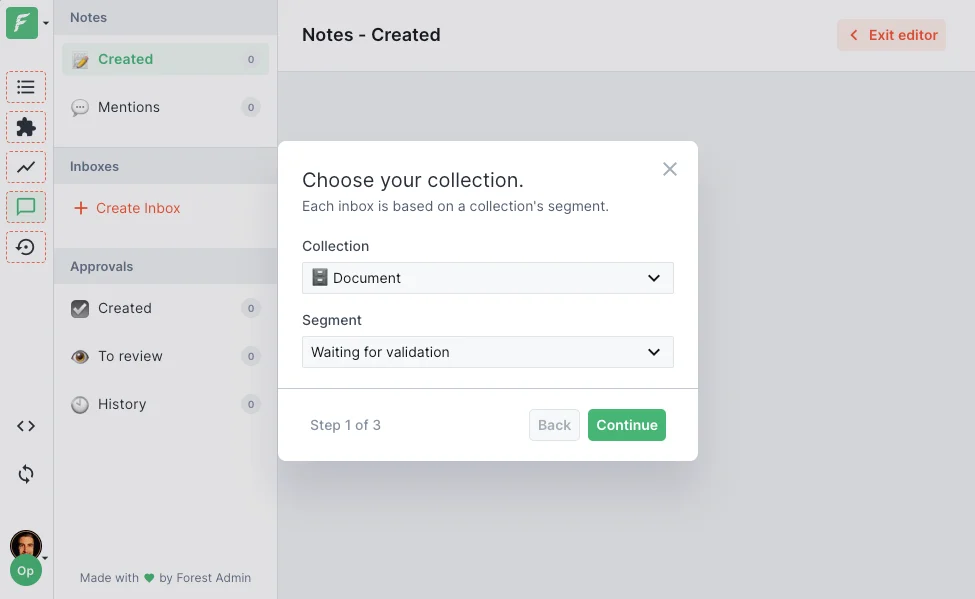
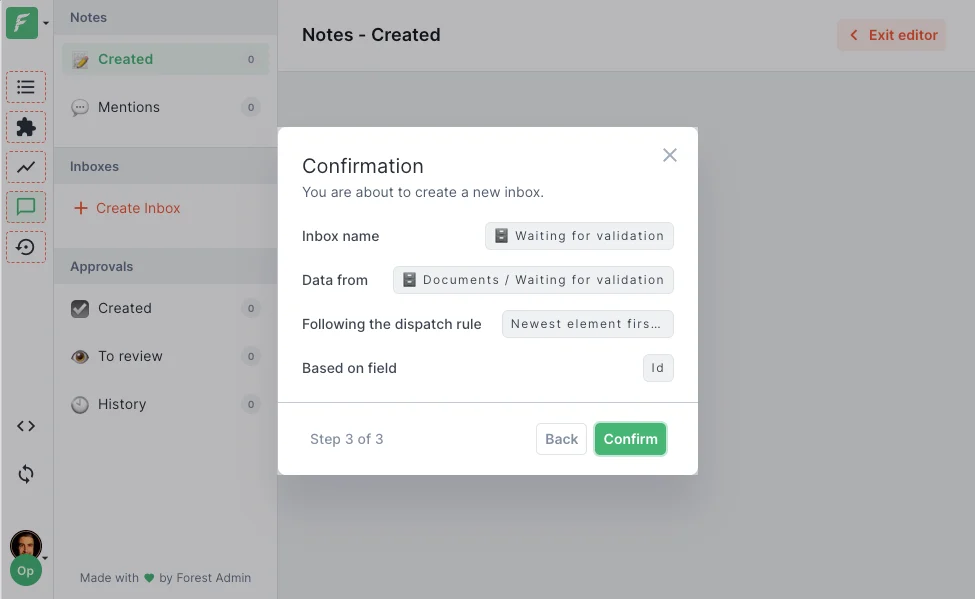
Documents collection and the Waiting for Validation segment, all documents that have not been verified yet.
Processing tasks
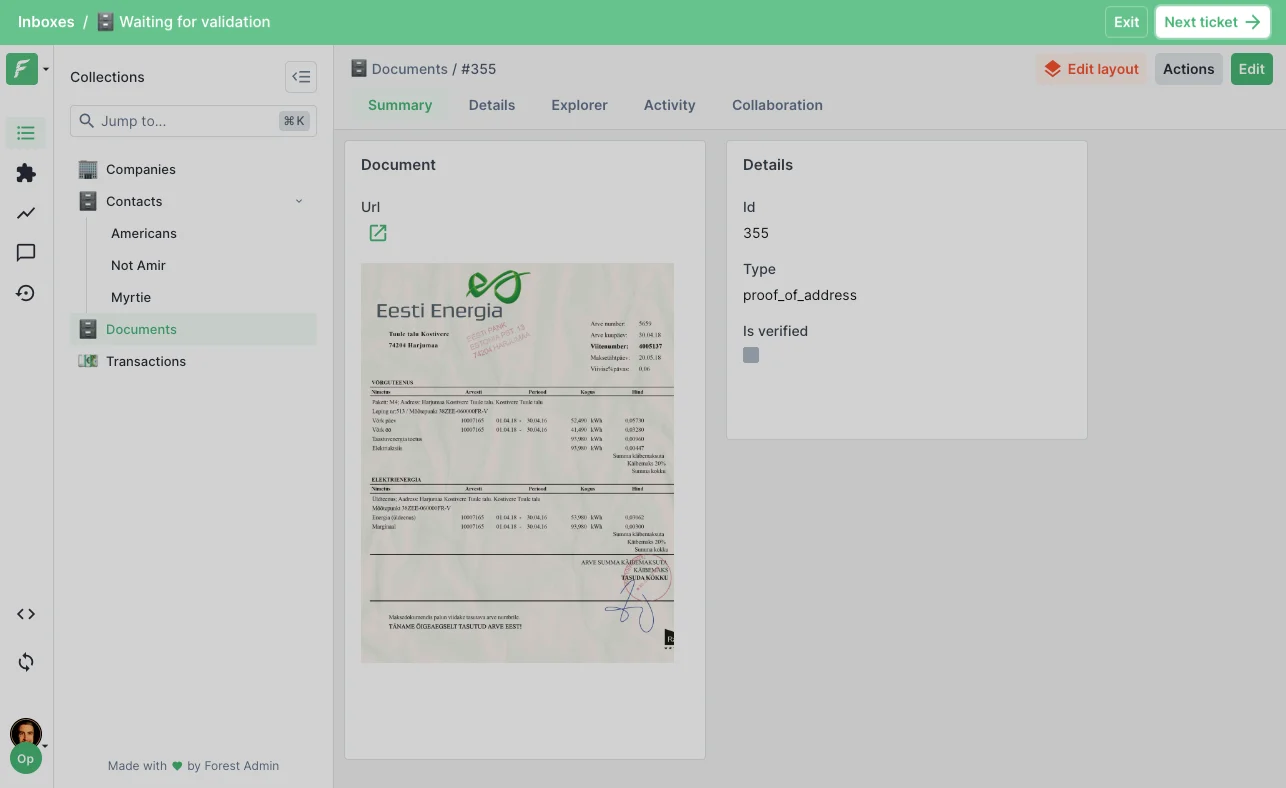
Once an inbox is created, operators can access it from the main tab, or any Workspace on which the inbox has been configured as a source. Click Start processing to be automatically assigned to the next task and redirected to the record.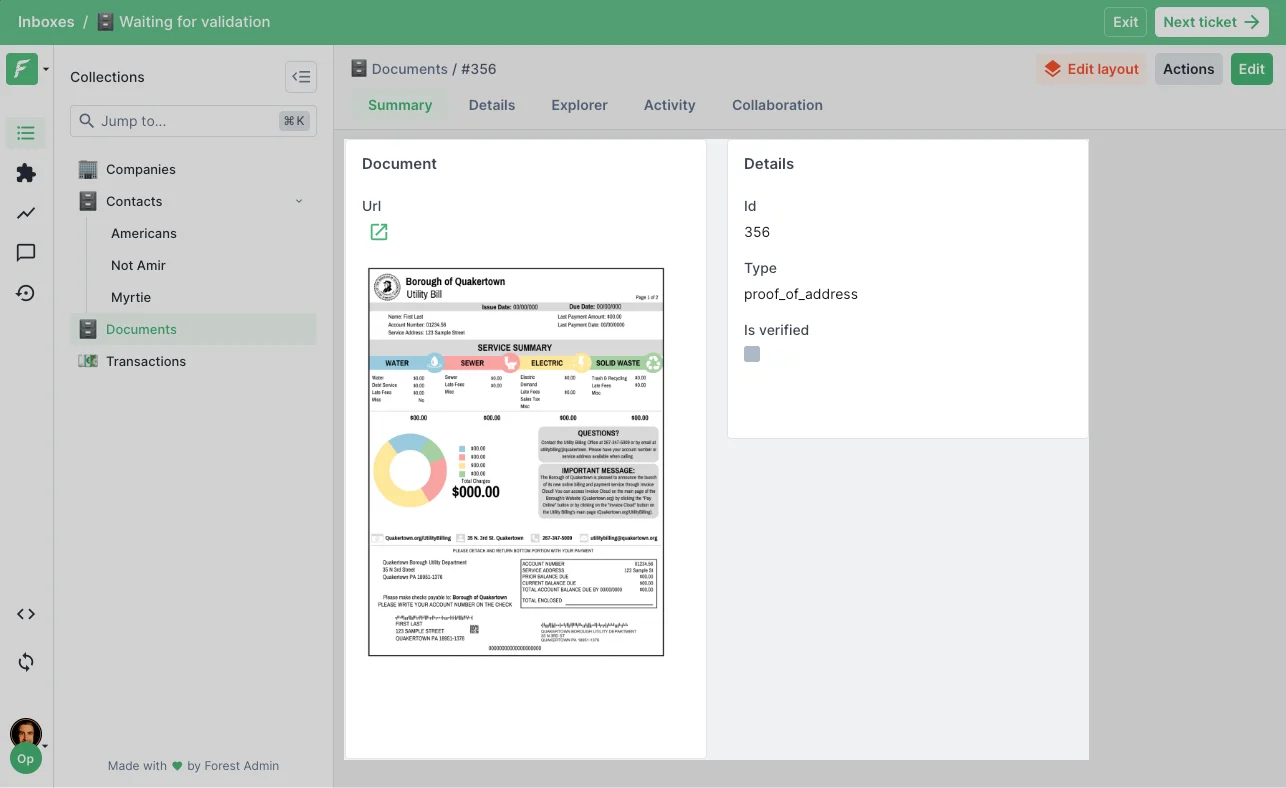
To do
The To do section shows the number of unassigned records, and provides the Start Processing button to be automatically assigned to the next task and redirected to the record. After completing the work on that record (e.g. triggering aValidate Document action), click Next ticket in the top bar to be assigned a new task automatically.
Doing
The Doing section shows tasks currently assigned to you. Navigate back to an in-progress record from here.Backlog
The Backlog is visible to operators with a Manager, Editor, Developer, or Administrator permission level. It provides an overview of all records in the inbox:- Which tasks are unassigned, in progress, or completed.
- Which operator is assigned to each task.
- For in-progress tasks: when the task was started.
- For completed tasks: the total handling time (including approval time if applicable).
Manual task assignment
Managers can manually assign a specific record to an operator from:- The Backlog section of the inbox.
- The record detail view, using the native “Assign to…” action, which also lets you assign records to operators outside your current team.
Inbox settings
Access inbox settings from Layout Editor mode → the menu next to the inbox name. From there:- Rename the inbox or update its icon.
- Edit its dispatch rules.
- Prevent operators from un-assigning themselves from tasks.
By default, operators can un-assign themselves from a task, and assign someone else in their place.
- Automatically un-assign tasks after a configurable idle time, making them available to other operators.
- Set a maximum number of concurrent tasks per operator, when reached, clicking “Next ticket” redirects the operator to one of their in-progress tasks instead of assigning a new one.
Maximum concurrent tasks and automatic unassignment are disabled by default.