

How it works
The app reaches your back-end through the Forest Gateway, whose API service exposes a flat REST contract to browser UIs. Each Zendesk agent signs in with their own Forest account, and every call travels to your back-end as that person. Their roles, permissions and scopes apply exactly as they do in Forest.Versions up to and including 1.1.1 went through the Forest MCP Server, and they speak a protocol the Gateway API does not serve. Changing the URL on one of those installations is not enough: update the app first, then repoint it at your Gateway URL. 1.3.0 renamed the setting to
forestGatewayApiUrl, so the update leaves the field empty and an admin has to enter the URL again before anyone can sign in.Prerequisites
Before installing the app, your tech team needs a Gateway API that a browser can reach:- A Gateway serving your Forest back-end, either embedded in your Node.js agent (
addGateway({ api })) or deployed as the standalone Gateway. - OAuth enabled on it, which is what lets each Zendesk agent sign in with their Forest account.
- The app’s iframe origin allowed, because the app calls the Gateway from the browser. Recent Gateways allow it on their own.
@forestadmin/agent 1.111.0 and the standalone Gateway 1.1.0, the Gateway API always allows https://*.apps.zdusercontent.com, the domain Zendesk serves every app’s iframe from, so there is nothing to configure. The Forest app’s own origin is https://1231469.apps.zdusercontent.com, its Marketplace id, the same on every installation. Your allowedOrigins entries are added to that one, never in place of it.
The embedded option needs @forestadmin/agent 1.109.0 or later, which ships the Gateway and its addGateway() method, and loads @forestadmin/agent-bff at runtime, an optional peer dependency of @forestadmin/agent, at exactly the version the agent declares. Install or upgrade both in one command: npm install @forestadmin/agent@latest @forestadmin/agent-bff@latest. On an older agent the call throws agent.addGateway is not a function.
A build served locally with
zcli apps:server runs from http://localhost:4567. Allow-list that origin too while you develop.addBff() or forest-bff? Move to the Gateway first, through Moving from addBff() or From forest-bff, then point the app at the new …/api URL.
Make a note of the URL your Gateway answers on. You’ll need it when installing the Zendesk app:
Installing the Zendesk app
1
Install from the Marketplace
Find the Forest app in the Zendesk Marketplace and click Install.
2
Open your Zendesk Admin Center
Enter your Zendesk URL and click Next. You are redirected to the Admin Center.
You need to be an Admin in Zendesk to access the Admin Center.
3
Fill in the installation form
- Forest Gateway API URL (
forestGatewayApiUrl): your Gateway URL, from the table above - Optionally, restrict which Zendesk roles and groups get access to the Forest app
A form labelled Forest MCP URL, suggesting a URL ending in
/mcp, means the installation has not updated past 1.1.1 yet. Update it first, then enter your Gateway URL. Nothing else to configure: versions up to 1.0.2 also carried a contextField parameter, and it is gone. The app matches tickets from their own content.4
Install
Click Install.
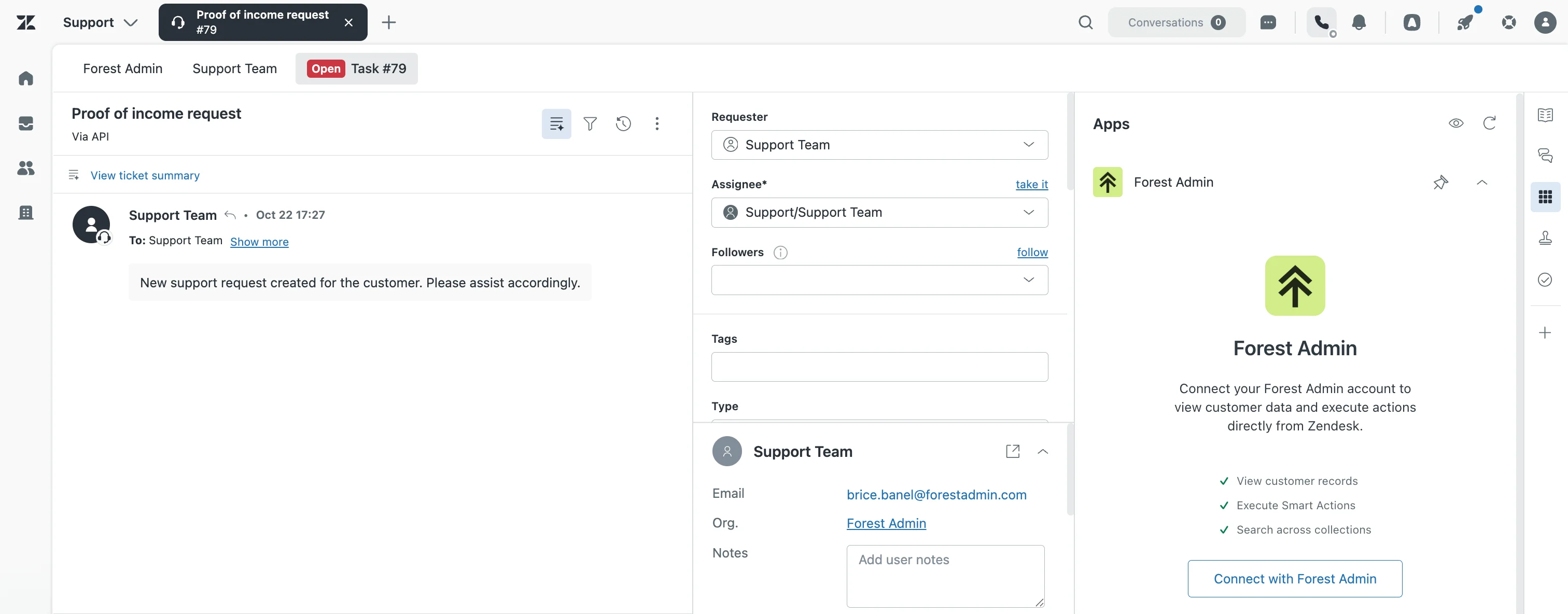
The Forest Zendesk app is now installed. Add it to your ticket sidebar from the Apps tab.
Signing in
Each Zendesk agent connects with their own Forest account, once:- In the Forest app, click Connect with Forest Admin
- Sign in to Forest in the popup that opens, as you usually would to reach your project
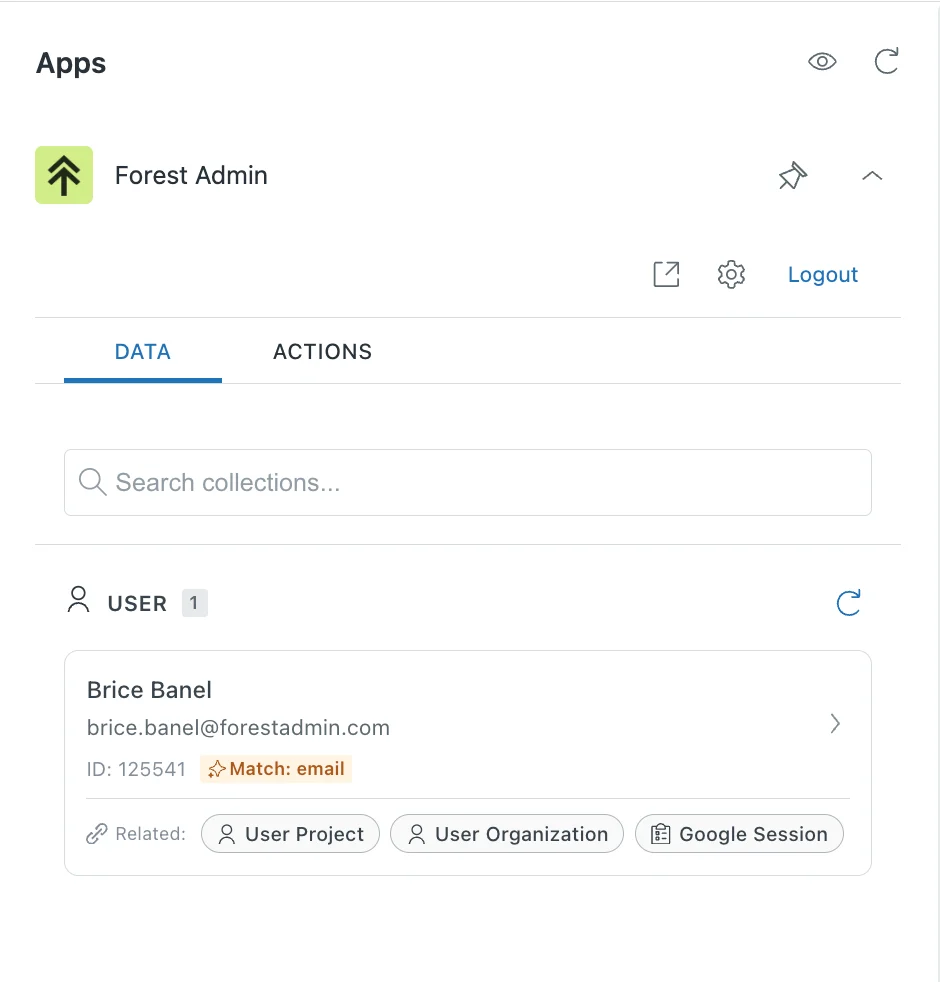
- The popup closes and the app shows your data
How a ticket is matched to a record
You configure nothing here. On every ticket the app reads the signals the ticket already carries, then searches your collections for them, with no model in the loop. It reads the requester’s Zendesk id and email, plus the emails, URLs and record ids it finds in the subject and description. It recognizes five record id formats:- a UUID
- a prefixed id, 2 to 8 letters and an underscore followed by at least 10 letters and digits mixing both, as in
abc_9f8e7d6c5b4a - a 24-character hexadecimal ObjectId
- a
#1234reference of 4 digits or more - a number of 6 digits or more
snake_case words, file names and version strings are not read as ids.
It searches the fields your schema exposes, picked by name:
Each record id goes to every collection whose key can hold it, a UUID to a
Uuid or String field, a number to a Number or String field, a prefixed id or ObjectId to a String field. In each collection the app searches one id field, id when it fits and otherwise the first id field that does, plus the collection’s external user id fields. A Zendesk user id field only receives numbers. No collection is skipped for its position in your schema, so a ticket carrying an order id and a customer id can surface both records.
Exact hits outrank partial ones, join-like collections lose 30 points, and the best-scoring records surface in the Data tab. Each ticket is capped at 6 searches at once, 30 collections for the Zendesk id, 15 for emails, and 100 searches in total, so a wide schema does not fan out indefinitely. Searches past that budget are dropped, and the app logs how many in the browser console.
A collection that stores the Zendesk user id under a name outside that convention,
crm_user_ref or support_id for instance, is never searched for it. Expose a field whose name follows the convention, or rely on the email signal.Where AI is used
Two features call a model, both in the Actions tab, both through the Gateway API’s relay,POST {basePath}/api/agent/v1/ai/query, which relays to Forest’s AI proxy with the signed-in Zendesk agent’s session. The Gateway holds the Forest token, and the browser never sees it.
Suggested action names come back through a filter: the app keeps the ones that match a real action and drops the rest, so a hallucinated name never reaches a button. Every ticket field is sanitized before it leaves, with injection markers stripped and lengths capped. Records and relations browsed in the Data tab never reach the AI proxy, and neither does matching.
The AI relay is served whenever sign-in is configured on the Gateway, which
GET {your-gateway-url}/health reports as configured.ai. Stay out of the Actions tab and nothing is sent: the Data tab, the search bar and the matching never call it.Troubleshooting
Zendesk agents cannot sign in
Zendesk agents cannot sign in
- Check
GET {your-gateway-url}/health,configured.oauthmust betrue - Confirm
forestGatewayApiUrlpoints at the Gateway API (…/api), not at the agent root and not at an MCP URL - On a CORS error in the browser console, check the Gateway version first: before
@forestadmin/agent1.111.0 and the standalone Gateway 1.1.0, the allow-list must holdhttps://*.apps.zdusercontent.comor the exacthttps://1231469.apps.zdusercontent.com. Your Zendesk tenant URL never covers the iframe origin. The rejected preflight answers204with no headers, so the403 origin_not_allowednever reaches the browser, and the Gateway logsBFF preflight origin rejectedwith the origin it refused
A Zendesk agent sees no record on a ticket
A Zendesk agent sees no record on a ticket
- Confirm their Forest role grants read access to the collection. The app shows what that person is allowed to see, nothing more
- Check that one of your collections carries the requester’s email, or an id field the naming convention recognizes. Nothing is configured per installation, so a schema that stores the Zendesk id under an off-convention name stays invisible to the matcher
- Use the search bar to confirm the record exists and is readable: if search finds it but the ticket does not, the gap is in the signals, not in permissions
Actions are missing from the Actions tab
Actions are missing from the Actions tab
Actions the caller’s permissions do not confirm are hidden. Check the role’s action permissions in Project Settings → Roles.