

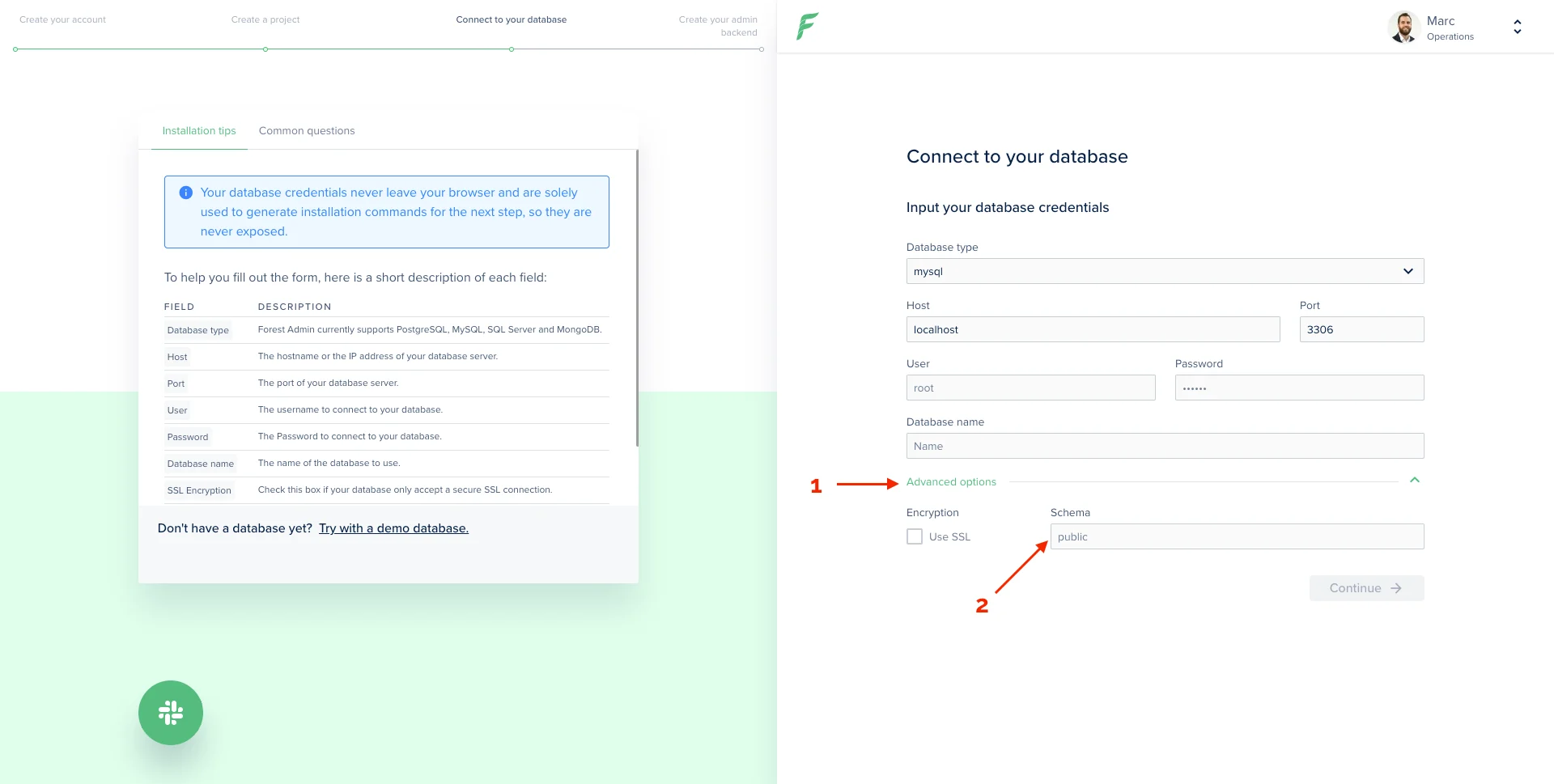
If you’re not using specific schemas, you don’t have to fill this advanced option.
Forest can display collections from multiple schemas
To achieve this, proceed to install using 1 of your schemas. Only the models of this schema will be generated in yourmodels directory.
Let’s take a model example:
On line 24, you’ll notice schema: process.env.DATABASE_SCHEMA.
It uses the environment variable DATABASE_SCHEMA set in your .env file. You’ll have to edit this to match your schemas. For instance, if you have 2 schemas: Once this is done, follow those steps:
Step 1: Edit your current models
Because you have changed your environment variable name fromDATABASE_SCHEMA to DATABASE_SCHEMA_1, you need to update it in all your models’ file in the models directory (same line as line 24 in the above example).
Step 2: Create new models
For each of your other schemas’ models, you’ll need to create a file inmodels. This must be done manually and the schema line must be set to DATABASE_SCHEMA_2 as per above example.
If your other schemas have a lot of models, a quick way to generate the models is to create a another project using those other schemas (1 project for each schema).